 UltraGX
Documenting a KB
Documenting a Knowledge Base means running the pipeline on it: the Run pipeline tab reads the KB, analyses it and writes the complete documentation into a sub-folder of the output folder.
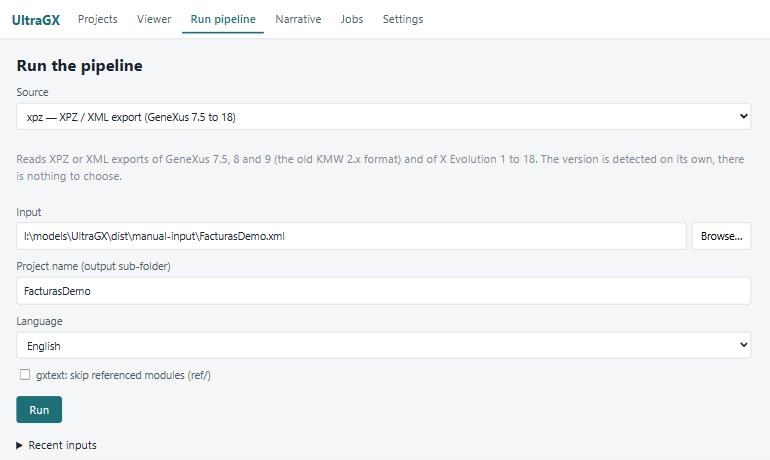
1. Choosing the source
| Source | What you choose in Input | When to use it |
|---|---|---|
| xpz — XPZ / XML export (GeneXus 7.5 to 18) | an .xpz or .xml file | The general case. It works for any version and on any operating system. The GeneXus version is detected automatically |
| gxtext — text export folder (src/ + ref/) | the folder that contains src/ and ref/ | If you already have a GeneXus 17 or 18 text export |
| live — open the KB with the GeneXus installed on this machine (connector) | the KB folder (the one that contains the .gxw) | Windows with GeneXus X Evolution 1 to 18 installed. Nothing needs to be exported by hand |
| mcp — raw JSON dumps folder | a folder of JSON dumps | Internal use and support; normally not used |
Below the selector, the application explains each source. If the live option appears disabled (needs the connector and a GeneXus installation), the machine has no GeneXus or you are using a copy without the connector.
How to get an XPZ
In the GeneXus IDE: Knowledge Manager → Export, select all the objects of the KB and export to an .xpz file. In old versions (7.5, 8, 9) the equivalent path is Knowledge Manager → Distribute. Include everything: the more complete the export, the better the references, the data model and the clusters.
Tips:
- Export from the up-to-date development KB, not from an old copy.
- If the KB is very large and the IDE cannot export it in one go, export it in parts (by module or by object type) and document each file as a separate project, or use the live source.
- If you documented the KB with a version of UltraGX earlier than 0.2.5 and the SDTs appear without members, run the pipeline again (and, with the live source, the export) with the current version.
Live source and GeneXus version
With live, UltraGX opens the KB with the installed GeneXus, exports it to text inside the project folder (_source_text/) and then runs the pipeline. In GeneXus version for the live KB leave auto (from the KB): the connector picks the installation that matches the version the KB was saved with. If you have several installations of the same version (for example two upgrades of GeneXus 18), you can force one.
Before running with live:
- Close the KB in the GeneXus IDE. A KB can only be open in one process at a time; if the IDE (or another tool) has it open, the export waits or fails.
- Expect the live export to be the slowest stage: the connector extracts each object through the GeneXus SDK. A 5,000-object KB can take more than an hour just to export. The log shows which object is being extracted.
2. Project name and language
- Project name (output sub-folder): by default, the name of the input file or folder. If you run again with the same name, the project is regenerated in the same folder and the user notes and the narrative already generated are kept.
- Language: English, Español or Português (BR). It is the language of the document prose and of the viewer. The
README.mdat the root of the output is always in English, because it is meant for AI agents. - gxtext: skip referenced modules (ref/): with the gxtext and live sources, leaves out the objects of modules that the KB only references (GeneXus and third-party libraries). It speeds up the run and cleans up the inventory; the downside is that calls to those modules remain as external references.
3. Running
Click Run. The log below shows progress by stage:
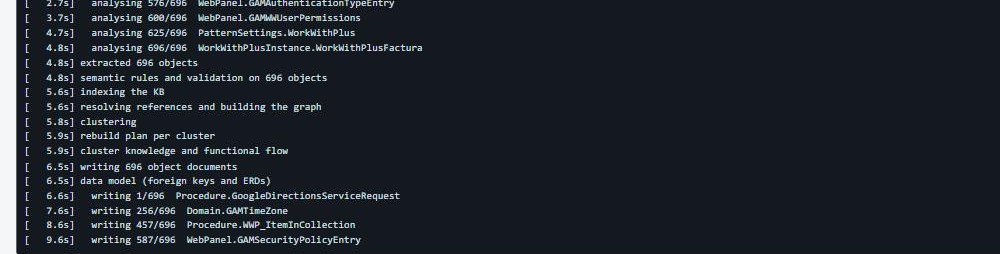
- Reading: the engine reads the source and names the object it is processing.
- Analysis: rules, events, variables, data access and references of each object.
- Graph, clusters, knowledge and rebuild plan: relationships between objects.
- Writing: documents, data model, diagrams and viewer.
- Acceptance: final quality check.
To avoid flooding the screen, the log writes at most one line per second per stage. If a line repeats with the same object for a while, the engine is still working on a large object: it has not hung.
When it finishes successfully, the status changes to done, the project appears in Projects and opens automatically in the Viewer. If the run fails, the status says finished with status error and the log shows the reason (see Troubleshooting).
Reference times
| KB | Source | Approximate time |
|---|---|---|
| 700 objects | XPZ | less than a minute |
| 5,000 objects | XPZ or text export | from a few minutes to half an hour |
| 5,000 objects | live | the export (an hour or more) plus the pipeline |
Times depend on the disk and on the size of each object's code. With the demo, a brief check with the licence service is added.
Recent inputs
Recent inputs keeps the last fifteen inputs used. Click one to load it into Input again.
Opening an XPZ with a double click
If you ticked Open GeneXus exports (.xpz) with UltraGX during installation, double-clicking an .xpz opens the application on Run pipeline with the xpz source and the file already loaded: you only need to check the project name and the language, and click Run.