 UltraGX
The application
The UltraGX window has a top bar with six tabs and, on the right, the active output root with the Output folder… button to change it. Each pipeline run creates a sub-folder inside that folder; it is best to choose one on a disk with free space and outside synchronised folders (OneDrive, Dropbox), because a large KB generates thousands of files.
The first time, if no output folder is set, the application opens Settings directly.
Projects

Lists every folder under the output root that contains a pipeline run:
| Column | What it shows |
|---|---|
| Project | name of the sub-folder |
| Source / Input | where the KB was read from (xpz, gxtext, live) and the path |
| Objects / Clusters | number of documented objects and of functional groups |
| Avg conf. | average confidence of the analysis, from 0 to 100 |
| Acceptance | result of the final quality check (passed, warning, failed) |
| Narrative ok | objects with published AI prose |
| Modified | date of the last run |
Open takes the project to the Viewer; Rebuild viewer rebuilds its website; Folder opens it in the file manager. Refresh reads the output folder again and Open folder opens the whole output folder.
Viewer
Shows the website generated for the project chosen in the drop-down list. It is explained in detail in Reading the result.
- Reload: reloads the page (useful while the narrative is running, since it keeps updating the documents).
- Rebuild viewer: rebuilds the site from the output files, without analysing the KB again.
- Open in browser: opens the same viewer in your browser. Everything can be read from the browser, but user notes can only be added from the application.
Run pipeline
This is where a KB is documented: you choose the source, the input, the project name and the language of the documents. See Documenting a KB.
Narrative
Adds prose written by a language model to the documents of an already generated project, with connections to different providers. See AI narrative.
Jobs

Every pipeline and every narrative you launch becomes a job with its Kind, Status, Started and Command. Log shows the full output of the job (also for finished ones, as long as the application stays open) and Stop cancels it. You can run one pipeline and one narrative at the same time, but not two pipelines or two narratives simultaneously.
Do not close the application with jobs in progress: tracking and the log are lost. Wait for them to finish or stop them first. A stopped narrative can be resumed later without repeating the objects already processed.
Settings
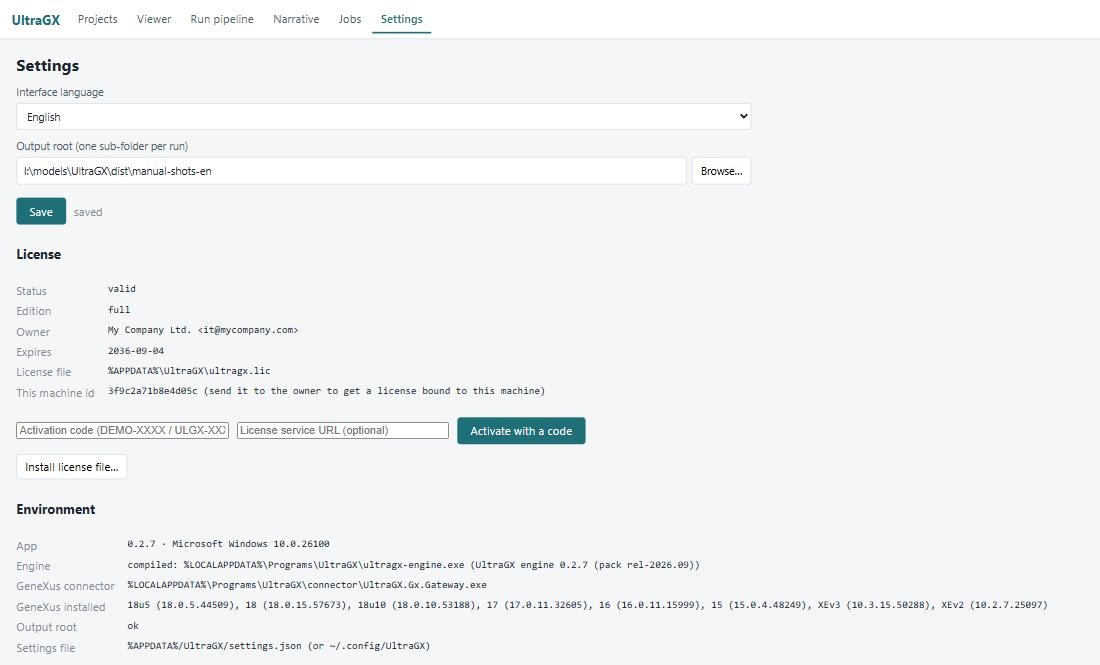
- Interface language: English, Español or Português (BR). It does not change the language of the documents, which is chosen on each run.
- Output root: the same one shown in the top bar. Click Save after changing it.
- License: status, activation with a code and installation of a licence file. See First start and licence.
- Environment: what the application detected on the machine.
| Environment | What it means |
|---|---|
| App | version and operating system |
| Engine | path and version of the compiled engine in use |
| GeneXus connector | path of the connector, or not found (always on Linux and macOS; on Windows only when using a copy without the connector) |
| GeneXus installed | GeneXus installations found, with their version; if there are none, you work with XPZ or text exports |
| Output root | ok if it exists |
| Settings file | where settings, connections and the licence are stored |